

Documentation Index
Fetch the complete documentation index at: https://docs.kontext21.com/llms.txt
Use this file to discover all available pages before exploring further.
Common Issues
Use this guide to diagnose and resolve frequently encountered problems when running X21.X21 Button disappeared, the add-in is uninstalled
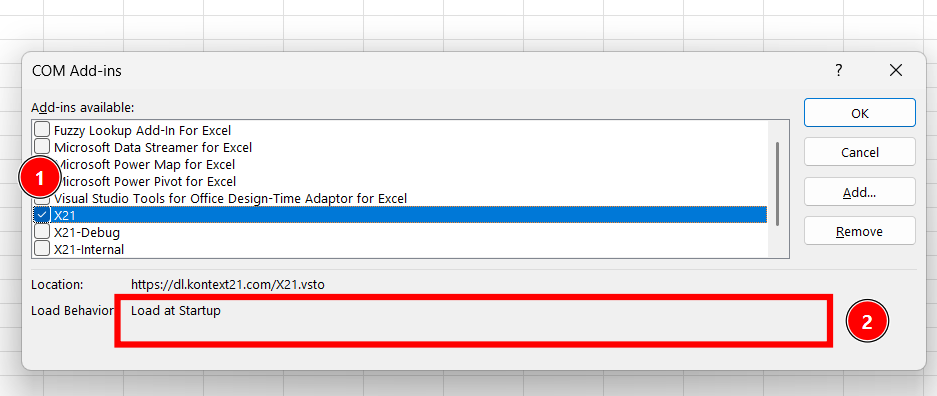
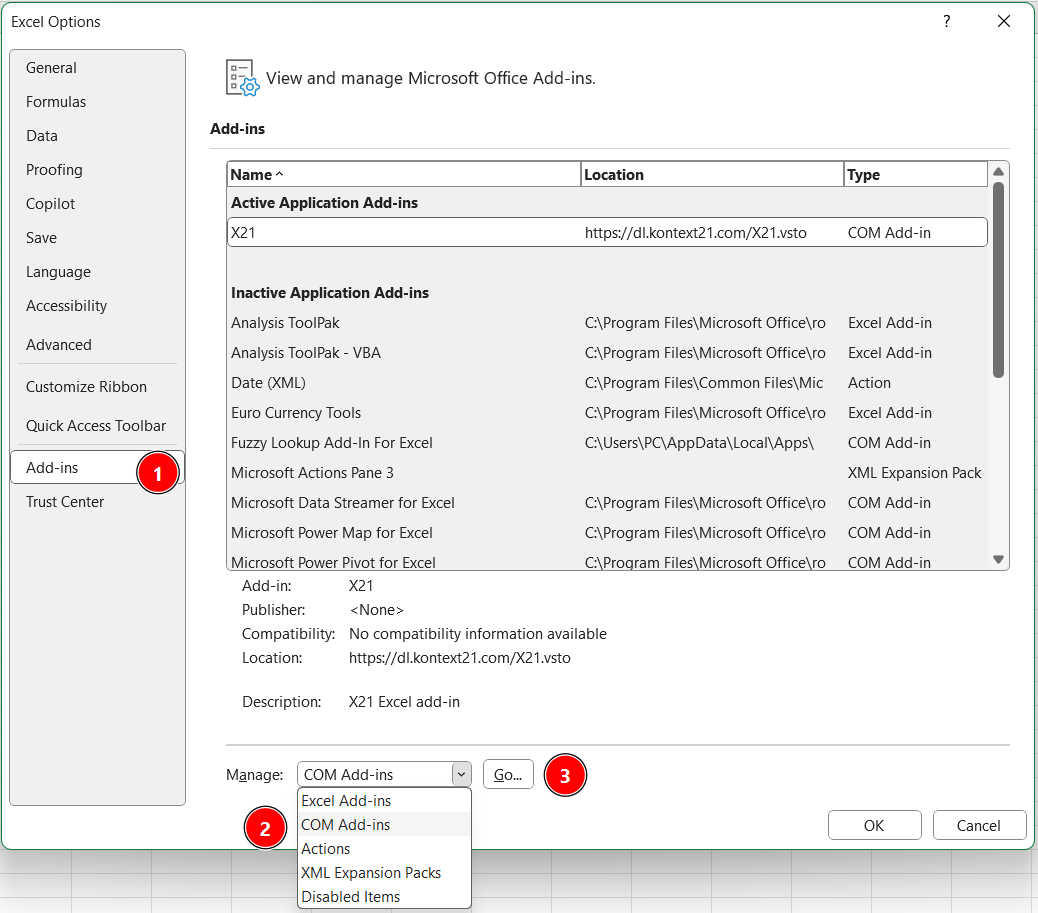
Re-Enable the add-in
- Click the search on top of Excel (or press Alt+Q) > type “COM Add-ins” or
- Check File > Options > Add-Ins > Manage: COM-Add-Ins > Go
- Check for errors in the “Load Behavior”
- Tick the checkbox to load X21 again

Reinstall the add-in
- Close Excel and install X21 again
Uninstall X21 to install a different release channel
Deno Server Won’t Connect
- Symptoms – Task pane shows “Failed to connect to Deno server” or constant reconnect attempts.
- Causes
- Backend port blocked by security software.
- Deno process failed to start.
- Port files in
%LOCALAPPDATA%\X21are stale.
- Resolution
- Close Excel to stop the backend, then delete
deno-server-port-*anddeno-websocket-port-*files. Reopen Excel so the backend picks new ports. - Check
%LOCALAPPDATA%\X21\X21-deno\Logsfor startup errors. - Ensure antivirus allows
x21-backend.exeanddeno.exe.
- Close Excel to stop the backend, then delete
No Tool Requests Appear
- Symptoms – Claude responds but never proposes tools, or the UI stays empty.
- Causes
- Tools disabled in configuration.
- Prompt lacked sufficient context, causing Claude to answer verbally instead of acting.
- Resolution
- Confirm the desired tools are selected in the UI and registered in
src/tools/index.ts. - Reinforce your prompt (“Use write_values to apply the changes.”).
- Check Langfuse trace to see if tools were attempted but failed silently.
- Confirm the desired tools are selected in the UI and registered in
Excel Freezes or Lags
- Symptoms – Excel becomes unresponsive during tool execution.
- Causes
- Large ranges (hundreds of thousands of cells) processed in a single call.
- Conflicting add-ins or long recalculations.
- Resolution
- Split the operation into smaller batches.
- Disable other automation-heavy add-ins temporarily.
- Monitor the status bar—Excel automation runs on the main thread, so complex tasks take time.
Login Problems
- Symptoms – Supabase sign-in fails or user is repeatedly logged out.
- Causes
- Incorrect Supabase configuration.
- Clock skew causing token validation failure.
- Resolution
- Verify
supabaseUrlandsupabaseAnonKeyinsupabaseClient.ts. - Ensure the machine’s date/time is accurate.
- Clear browser storage via the profile menu and try again.
- Verify
ClickOnce Installation Fails
- Symptoms – Installer exits with certificate or prerequisite errors.
- Causes
- Missing WebView2 runtime or .NET Framework 4.8.
- Signing certificate not trusted.
- Resolution
- Install required prerequisites manually.
- Import the certificate into Trusted Publishers.
- For offline installs, use the
ProductionLocalbuild (x21-setup-vX.Y.Z.W.exe).
The customization cannot be installed because another version is currently installed and cannot be upgraded from this location.
- Delete Computer\HKEY_CURRENT_USER\Software\Microsoft\VSTA\Solutions
- Delete C:\Users\PC\AppData\Local\Apps\2.0 see video
Microsoft.VisualStudio.Tools.Applications.Deployment.AddInAlreadyInstalledException: The customization cannot be installed because another version is currently installed and cannot be upgraded from this location. To install this version of the customization, first use Add or Remove Programs to uninstall this program: X21. Then install the new customization from the following location: https://dl.kontext21.com/X21.vsto