
Use this when you want X21 to call your Azure OpenAI deployment instead of the default provider.Documentation Index
Fetch the complete documentation index at: https://docs.kontext21.com/llms.txt
Use this file to discover all available pages before exploring further.
Before you start
Have these values ready:- Endpoint (Azure OpenAI resource URL)
- API key (from Azure Portal → Keys and Endpoint)
- Deployment name (the deployment name you created in Azure)
- Model (the underlying model, e.g., gpt-5.2)
- Reasoning effort (optional)
Important: API compatibility
X21 uses the OpenAI Responses API format, which requires:- GPT-5.x or newer models
- Azure endpoints that support
/openai/v1/responses - API version
2024-08-01-previewor later
*.openai.azure.com) typically support this API.
Configure in the app (recommended)
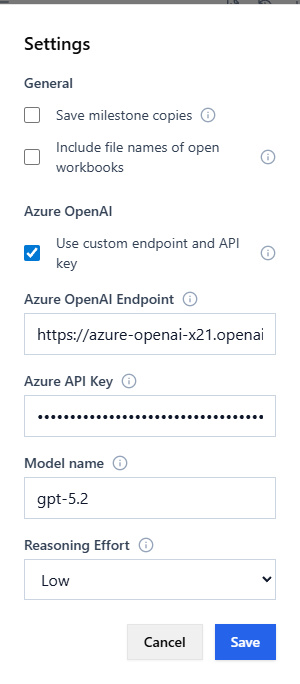
- Open X21 in Excel and click Settings (gear icon).
- Under Azure OpenAI, enable Use custom endpoint and API key.
- Enter:
- Endpoint
- API key
- Deployment Name
- Model
- Reasoning effort (optional)
- (Optional) Click Test Connection to verify the configuration.
- Click Save. X21 reloads the configuration automatically.
Settings reference
What each setting means
- Use custom endpoint and API key: Turns on Azure OpenAI for X21 using the values below (instead of the default provider).
- Endpoint: The base URL of your Azure OpenAI resource (no
/openai/...path). Example:https://your-resource.openai.azure.com - API key: A key from your Azure OpenAI resource in the Azure Portal (under Keys and Endpoint).
- Deployment Name: The name of the deployment you created in Azure Portal. This is what you see under “Deployments” in your Azure OpenAI resource (e.g.,
aihub-gpt-5.2,my-deployment). - Model: The underlying model that your deployment uses (e.g.,
gpt-5.2,gpt-4.1). If unsure, this often matches your deployment name. - Reasoning effort: Controls how much reasoning the model can use. Higher can improve results but may be slower and cost more. Options: Low, Medium, High.
Find the Azure values
In Azure Portal
- Navigate to your Azure OpenAI resource
- Go to Keys and Endpoint:
- Endpoint: Copy the endpoint URL (e.g.,
https://your-resource.openai.azure.com/) - API key: Copy Key 1 or Key 2
- Endpoint: Copy the endpoint URL (e.g.,
- Go to Deployments:
- Deployment Name: The name you created (e.g.,
gpt-5-deployment) - Model: The model shown next to your deployment (e.g.,
gpt-5.2)
- Deployment Name: The name you created (e.g.,
Endpoint format
X21 will append/openai/v1/responses to your endpoint, so you only need the base URL:
- ✓ Correct:
https://your-resource.openai.azure.com - ✗ Wrong:
https://your-resource.openai.azure.com/openai/v1/
What gets logged
X21 logs comprehensive information about Azure OpenAI connections:- Configuration loading (endpoint, deployment, model)
- Client creation with full URL paths
- API call parameters (model, reasoning settings, token limits)
- Connection attempts with detailed error causes
- Troubleshooting tips for common issues
- ✓ Success operations
- 📖 Configuration reads
- 💾 Configuration saves
- 📡 API calls
- ❌ Errors with detailed context
Test that it is working
Quick test (in Settings)
- In the Settings dialog, after entering your Azure OpenAI details, click Test Connection.
- Check for a success message showing your model name.
- Check your browser console (F12) for detailed connection information.
End-to-end test (in Excel)
- Open the X21 chat and send:
Reply with the word OK. - Confirm the response returns
OK.
If it fails
Check the log file:%LOCALAPPDATA%\X21\X21-deno\Logs\deno-<machine>.log
Look for:
✓ Azure OpenAI config loaded from database- Configuration loaded successfully✓ Creating Azure OpenAI Responses API client- Client created with your endpoint📡 Calling Azure OpenAI Responses API- Actual API call being made- Any error messages with troubleshooting tips
Troubleshooting
DNS or network errors
Error:dns error: No such host is known or Connection error
Solutions:
- VPN Required: Internal endpoints (like
*.internaldomains) typically require VPN connection. Connect to your corporate VPN and retry. - Verify Hostname: Double-check the endpoint URL is correct.
- Test DNS: Run
nslookup your-endpoint-urlin PowerShell to verify DNS resolution. - Use Standard Azure: If using an internal endpoint, try a standard Azure OpenAI endpoint instead:
https://your-resource.openai.azure.com
API version or path errors
Error: Connection starts but fails during streaming Solutions:- Check API Support: Your endpoint must support the Responses API (
/openai/v1/responses). - Verify Endpoint: Standard Azure OpenAI endpoints (
*.openai.azure.com) support this API. - Internal Endpoints: Custom or internal endpoints may not support the Responses API format.
Authentication errors
Error:401 Unauthorized or 403 Forbidden
Solutions:
- Verify your API key is correct (copy from Azure Portal → Keys and Endpoint).
- Check the API key hasn’t expired.
- Ensure the API key has permissions for your deployment.
Deployment not found
Error: Deployment name mismatch Solutions:- Verify the deployment name matches exactly what’s shown in Azure Portal → Deployments.
- Check that the model you’re requesting is available in your deployment.
- Deployment names are case-sensitive.